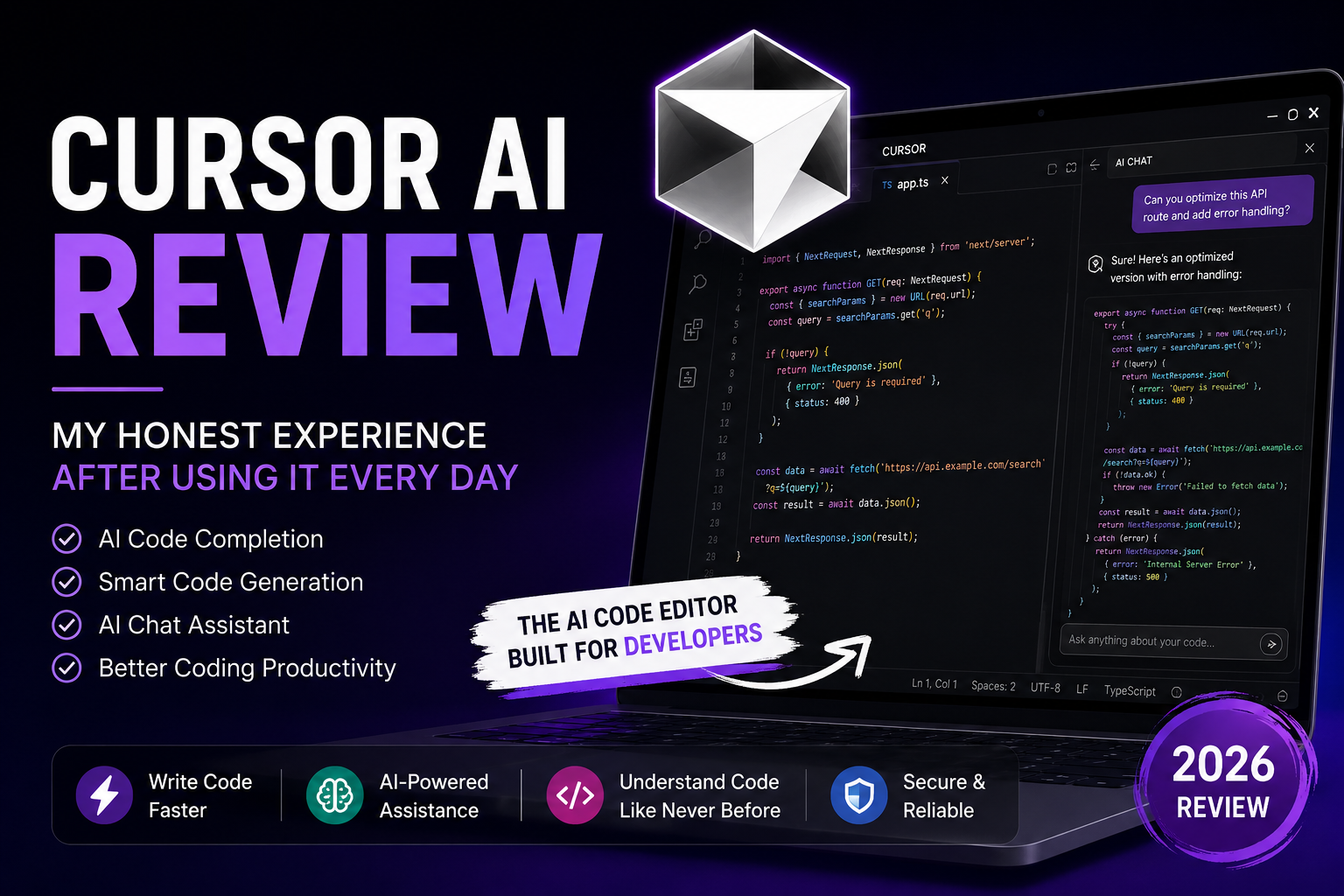
Cursor AI Review: My Honest Experience After Using It Every Day
Introduction
I still remember the night I got fed up with switching between five browser tabs just to write a simple function. That frustration is exactly why I started digging into AI code editors, and it’s how I ended up spending several weeks putting together this Cursor AI review.
I wanted something that actually understood my codebase instead of just guessing at random snippets. So I installed it, connected it to a few real projects, and used it every single day for work.
This isn’t a copy-paste summary of the official website. Everything in this Cursor AI review comes from my own keyboard, my own late-night debugging sessions, and my own opinions about where it shines and where it still needs work. By the end, you’ll know exactly what to expect before you install it yourself.
I’ve reviewed several AI tools before, including my Perplexity AI Review, so I went into this test with a fairly good sense of what separates a genuinely useful AI product from one that’s just riding the hype.
What is Cursor AI?
Cursor AI is an AI-powered code editor built on top of the same foundation as VS Code, but with artificial intelligence woven directly into the editing experience. Instead of bolting AI features on as an afterthought, Cursor AI feels like it was designed around the AI from day one.
My first impression was that it looked and felt exactly like VS Code, which honestly made the transition painless. I didn’t have to relearn a new interface or memorize a fresh set of shortcuts. I just opened my existing projects and started coding, except now I had a genuinely capable AI pair programmer sitting right next to my cursor.

Why I Started Using Cursor AI
I’d been relying on a mix of ChatGPT in a browser tab and basic autocomplete for a while, and honestly, the constant copy-pasting was killing my focus. Every time I needed help with a function, I had to break my flow, switch windows, explain my context again, then paste the answer back into my editor.
I wanted a tool that could see my entire project, not just the one file I happened to have open. I also wanted something that could explain unfamiliar code, catch bugs before they became a headache, and help me refactor messy sections without me rewriting everything by hand.
Those were my exact expectations going into this Cursor AI review, and I kept a mental checklist of whether it actually delivered on each one.
Installing Cursor AI Was Easier Than I Expected
I’ll admit I expected some kind of complicated setup process, maybe a bunch of configuration files or API keys to hunt down. That wasn’t the case at all.
I downloaded the installer from the official site, and within a couple of minutes I had it running on my machine. Since Cursor AI is built on the same base as VS Code, it even offered to import my existing extensions, themes, and keyboard shortcuts automatically.
The first launch asked me to sign in and pick a plan, which took maybe thirty seconds. There was no fiddling with terminal commands or manually installing dependencies just to get the AI features working. That smooth setup already put me in a good mood before I’d even written a line of code.
My First Impression of Cursor AI
The interface felt instantly familiar, which I really appreciated. I didn’t have to relearn where my file explorer, terminal, or extensions panel lived.
What stood out immediately was how fast everything felt. There was no noticeable lag when I opened large files or switched between projects. The AI chat panel tucked itself neatly into the sidebar, so it never felt like it was fighting for space with my actual code.
Navigation felt intuitive too. I could highlight a block of code, right-click, and get AI suggestions without breaking my train of thought. After just a day of use, I honestly forgot I was even in a “new” editor at all. It just felt like my normal setup, upgraded.
Cursor AI Features That I Loved
This section is really the heart of my Cursor AI review, because the features are what separate a good tool from a gimmick.
AI Chat
The built-in chat became my go-to whenever I hit a wall. I could ask it questions about my own codebase, and it actually understood the context of the files I had open. I found myself using it almost like a senior developer sitting next to me, except it never got tired of my questions.
Smart Code Completion
The autocomplete here is on another level compared to what I was used to. It doesn’t just finish a variable name, it predicts entire logical blocks based on what I’m building. One thing I really liked was how it adapted to my personal coding style over time.
Code Generation
When I described what I wanted in plain English, Cursor AI generated working code that needed minimal tweaking. I tested this with a React component and a Python script, and both came out clean and functional on the first try.
Code Editing
Instead of generating fresh code from scratch every time, I could select existing code and ask it to modify just that section. This saved me from the annoying habit of manually merging AI suggestions into my files.
Bug Detection
I intentionally introduced a few sneaky bugs into a test file, and I was genuinely surprised when it flagged an off-by-one error I might have missed for another twenty minutes. It doesn’t catch everything, but it caught more than I expected.
Refactoring
Cleaning up old, messy code used to eat hours of my week. With Cursor AI, I could ask it to simplify a tangled function, and it broke things down into smaller, more readable pieces while keeping the original logic intact.
Code Explanation
Whenever I opened someone else’s codebase, or even my own old projects, I used the explanation feature to quickly understand what a chunk of code actually did. It saved me from re-reading documentation that didn’t exist in the first place.
Terminal Assistance
I could ask questions directly related to terminal commands and get accurate suggestions without leaving my editor. This became especially handy when I forgot the exact syntax for a git command mid-project.
Multi-language Support
I tested it across JavaScript, Python, and a bit of Go, and it handled all three comfortably. It didn’t feel like it favored one language over another, which matters a lot for developers who juggle multiple tech stacks.
Context Awareness
This was probably my favorite technical strength. Cursor AI actually references other files in your project when answering questions, so the suggestions feel relevant instead of generic.
Performance
Even with fairly large projects open, I didn’t experience the sluggishness I was worried about. Cursor AI performance stayed consistent throughout my daily use, which matters a lot when you’re working under deadlines.
How Cursor AI Improved My Daily Workflow
After using it daily for a few weeks, I noticed real changes in how I approach coding tasks. Writing new features became faster because I wasn’t stuck googling syntax I’d forgotten.
Debugging turned into less of a guessing game. Instead of manually tracing through logic, I could ask the AI to walk through a function and point out where things might be going wrong.
Refactoring stopped feeling like a chore I kept postponing. Documentation, which I usually neglect, became easier to generate because I could ask it to summarize what a file or function actually does.
I realized my overall coding productivity went up noticeably, not because the AI wrote everything for me, but because it removed the small frictions that used to slow me down throughout the day.

Cursor AI Pricing
Cursor AI pricing is broken down into a few straightforward tiers, which I appreciated since some competitors make their pricing pages confusing on purpose.
Free Plan – This gives you access to basic AI completions and a limited number of premium AI requests each month. It’s a solid way to test the waters before committing financially.
Pro Plan – This unlocks significantly more AI requests, faster response times, and access to more advanced models. From my experience, this is the tier most working developers will actually want.
Business Plan – Designed for teams, this adds centralized billing, privacy controls, and admin features that make sense for companies managing multiple developer seats.
If you’re a student or hobbyist just exploring, the Cursor AI free plan is genuinely usable. But if you’re coding professionally every day like I was during this test, I’d personally recommend the Pro tier for the extra headroom.
Cursor AI vs GitHub Copilot
Since this comparison comes up constantly, I spent extra time testing both tools side by side to make this part of my Cursor AI review as fair as possible.
| Feature | Cursor AI | GitHub Copilot |
|---|---|---|
| Interface | Full standalone editor | Extension inside existing editor |
| AI Quality | Strong contextual understanding | Good, but more surface-level |
| Features | Chat, edit, generate, explain, debug | Mostly autocomplete-focused |
| Pricing | Free plan + Pro tier | Subscription-only, no robust free tier |
| Performance | Fast and consistent | Fast, but fewer context features |
| Ease of Use | Familiar VS Code layout | Familiar within VS Code/JetBrains |
| Productivity Boost | High, especially for refactoring | Moderate, mainly for completions |
| Learning Curve | Very low | Very low |
In my opinion, GitHub Copilot is still excellent for pure autocomplete, but Cursor AI edges ahead when you want a full AI-native coding experience rather than just smarter suggestions. If I had to pick one for daily professional work, I’d lean toward Cursor AI.
If you’re also curious about AI tools beyond coding, check out my Perplexity AI Review, where I break down my experience using it for research and everyday questions.
Who Should Use Cursor AI?
Students learning to code will benefit from the explanation features that break down unfamiliar syntax. Beginners get a patient AI pair programmer that never judges a “silly” question.
Freelancers juggling multiple client projects will appreciate the context awareness when jumping between unrelated codebases. Developers working on larger applications will love the refactoring and bug detection tools.
Teams and professionals managing bigger projects will find real value in the Business plan’s collaboration-friendly features. Honestly, I struggled to think of a developer type who wouldn’t get something useful out of this tool.
What I Liked Most About Cursor AI
What impressed me the most was how natural the whole experience felt after just a few days. I wasn’t constantly reminded I was using an AI tool bolted onto an editor. It genuinely felt like a smarter, faster version of coding as I already knew it.
I also really appreciated how the AI seemed to understand intent rather than just literal instructions. When I asked it to “clean this up” without much detail, it usually understood exactly what I meant based on the surrounding code. That kind of context awareness saved me from writing overly specific prompts every single time.
The speed also deserves a mention here. I wasn’t expecting responses to come back as quickly as they did, especially for more complex requests involving multiple files. My favorite feature overall was probably the AI chat combined with context awareness, because together they replaced so many of my old habits of searching Stack Overflow or digging through outdated documentation.
A Few Small Things That Could Be Better
I want to keep this Cursor AI review honest, so I’ll mention a couple of minor drawbacks I ran into.
First, the free plan’s request limits can feel restrictive if you’re coding heavily every day. I found myself hitting the cap faster than I expected during a particularly busy week.
Second, occasionally the AI would suggest a solution that technically worked but wasn’t quite the style I’d have written myself. Nothing broken, just a small preference mismatch that required a quick manual edit.
Third, larger monorepos with many nested folders sometimes took the AI a beat longer to fully index context, though this only mattered on my biggest projects.
Is Cursor AI Worth It?
Wrapping up this Cursor AI review, I can honestly say it earned a permanent spot in my daily development workflow. From the smooth installation to the genuinely useful AI features, it delivered on almost everything I hoped for when I first started testing it.
It’s not perfect, but the minor drawbacks I mentioned are far outweighed by the productivity boost I experienced. If you’re a developer, freelancer, or even a curious beginner wondering whether an AI code editor is worth trying, I’d recommend giving Cursor AI a shot. Based on my own weeks of daily use, it’s one of the more genuinely useful tools I’ve added to my setup in a long time.
And for more AI tool reviews like this, you can check out my Perplexity AI Review, where I share my honest take on another AI tool I’ve spent real time testing.
Conclusion
Wrapping up this Cursor AI review, I can honestly say it earned a permanent spot in my daily development workflow. From the smooth installation to the genuinely useful AI features, it delivered on almost everything I hoped for when I first started testing it.
It’s not perfect, but the minor drawbacks I mentioned are far outweighed by the productivity boost I experienced. If you’re a developer, freelancer, or even a curious beginner wondering whether an AI code editor is worth trying, I’d recommend giving Cursor AI a shot. Based on my own weeks of daily use, it’s one of the more genuinely useful tools I’ve added to my setup in a long time.
Plece Check This Artical